
How to book a trip in Andavo
You can search, compare, and book flights, hotels, and rental cars in Andavo, on the web or in the mobile app. Your travel profile does the repetitive work: loyalty numbers, your Known Traveler Number, and your payment method are applied for you. This article walks through how to book a trip in Andavo from start to finish.
Is booking enabled for you?
Andavo Booking is enabled for each organization by Christopherson Business Travel. If your Andavo home screen shows Flight, Hotel, and Car search tabs, you're set. If it shows a Book Online button instead, your organization books through its online booking tool; see Which booking experience do I have? below.

Before you start
Three things help improve your booking experience (each only take a minute of your time):
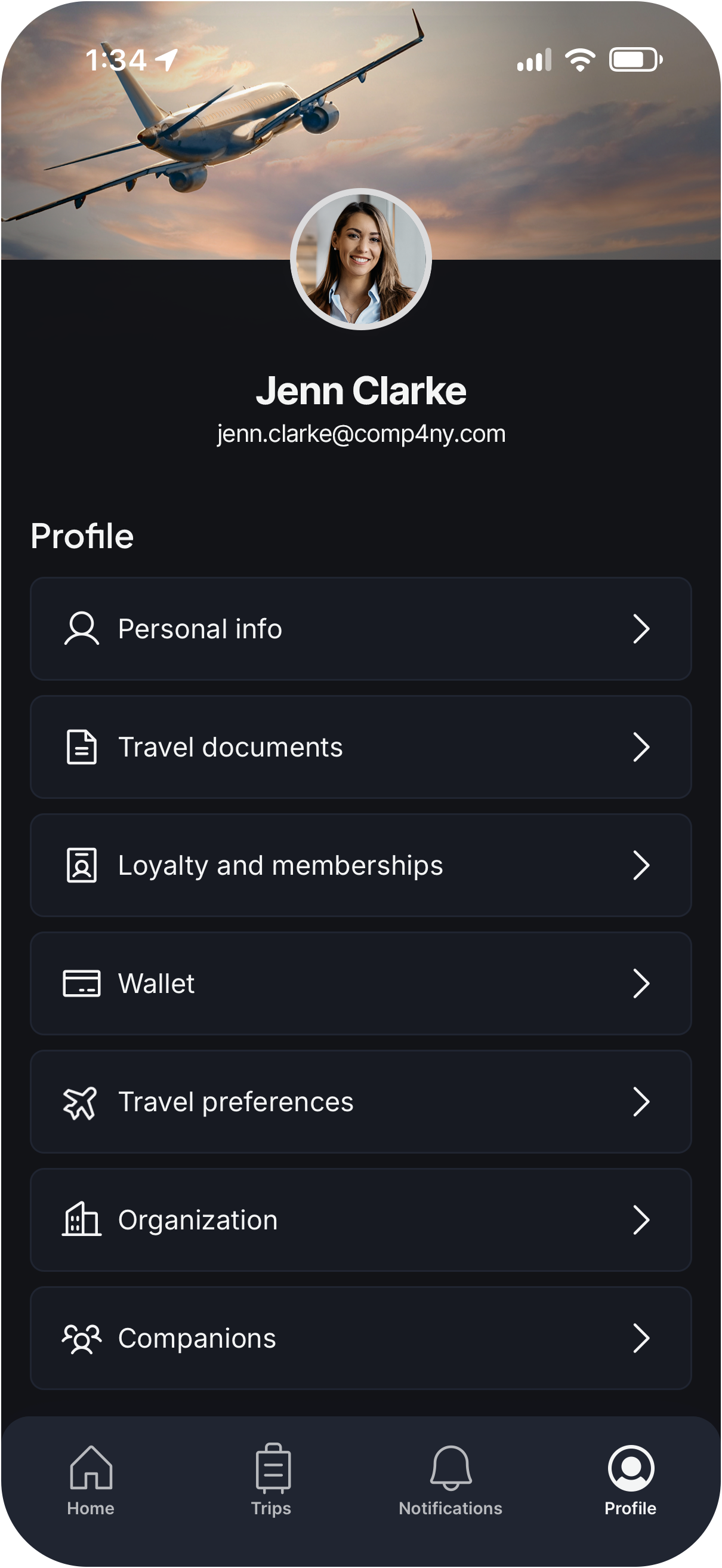
Complete your travel profile. Booking requires your legal name as it appears on your ID, your date of birth, and your contact information. Open Profile to check everything is accurate.
Add your loyalty programs and Known Traveler Number. Anything saved in your profile is applied to your booking automatically, including car rental loyalty numbers where the vendor supports them.
Confirm a payment method. Booking uses a card from your Andavo Wallet or one that your organization has set up for you. If your organization uses payment rules, the card that matches your profile is highlighted at checkout.
Do I have Andavo booking enabled?
Your organization may have multiple booking options. Here's how to tell which one your company uses.
What you see on the home screen | What it means |
| Your organization uses Andavo Booking. If you don't see those tabs, move to step two. |
| Your organization books through Concur or Deem. Selecting the button signs you in automatically; travel policy applies inside that tool. |
| Booking may not be turned on yet for your organization, or for the app you're using (web and mobile are enabled separately). Contact your travel administrator. |
The booking experience

Book a flight
A flight booking takes eight steps, and Andavo skips the ones that don't apply to your fare (for example, seat selection on a fare with no seat map). The flow is the same on web and mobile; where the screens differ, both are described.
Step 1: Search
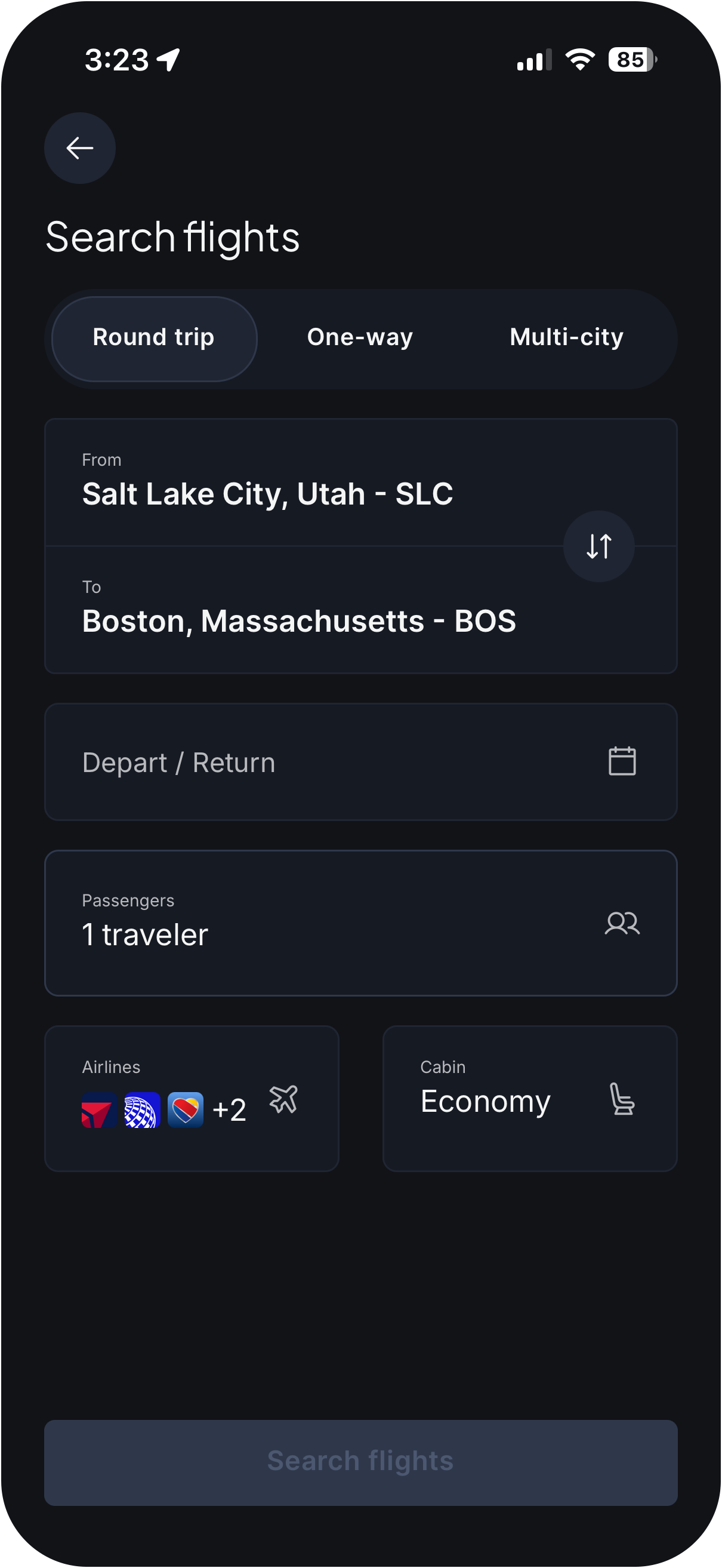
From the home screen, select the Flight tab.
Choose a trip type: Round trip, One way, or Multi-city.
Enter your departure and arrival airports. Start typing a city, airport name, or airport code and pick from the list.
Pick your dates. On mobile, the calendar opens once both airports are set.
Set your preferences: number of travelers, an airline if you prefer one, and cabin class (Economy, Premium Economy, Business, or First). Economy is selected by default. On mobile, these appear after both airports are set.
Select Search.
Multi-city trips: each leg gets its own row with departure, arrival, and date. Use the add and remove buttons to build the itinerary, up to 6 legs on each trip.
Recent searches appear below the form until you've filled in both airports, so a repeat trip is one tap.
Andavo Booking currently books one traveler at a time.
Step 2: Choose your flights
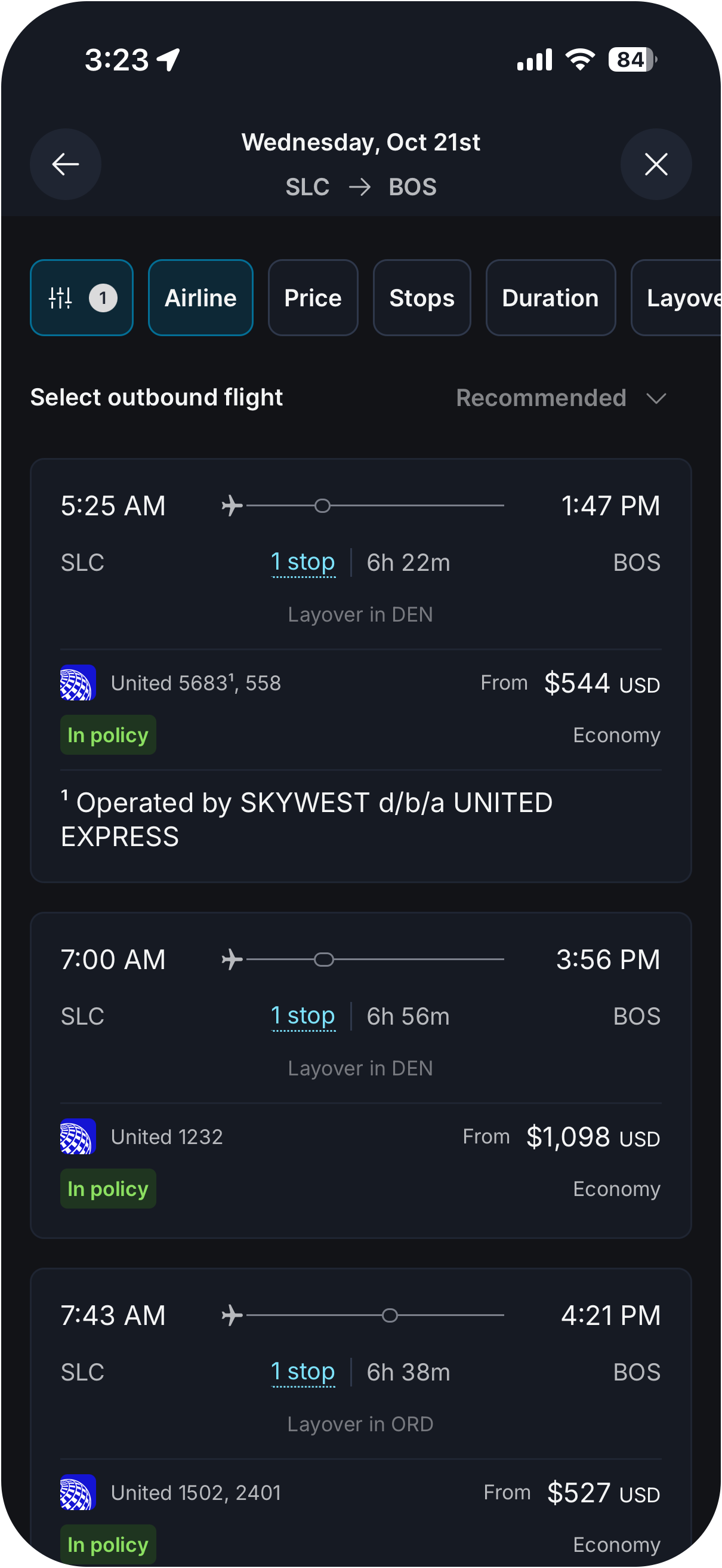
Results are shown one leg at a time: outbound first, then return.
Narrow the list with the filter chips: Stops, Price, Cabin, Airlines. Selecting a chip opens the full filter panel, where you can also filter by time of day, total travel time, and layover length.
To change your search, use the summary at the top of the results.
Select a card to expand its fare options.
Step 3: Pick a fare
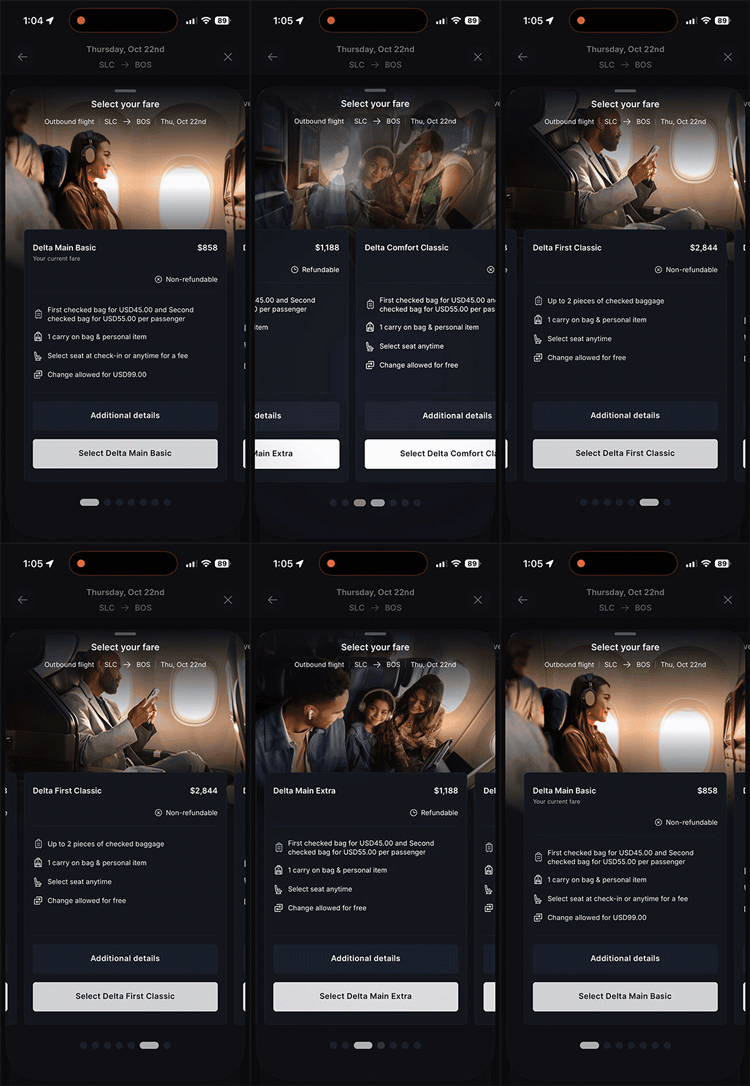
Each fare shows the price, fare rules, baggage allowance, and whether it is refundable. Select the fare you want. On a round trip or multi-city itinerary, Andavo moves you to the next leg; on the last leg, it moves you forward to checkout.
Step 4: Compare fare tiers (when offered)
After your last leg, you may see a side-by-side comparison of the airline's branded fares, for example Basic Economy, Main Cabin, and First, with amenities and ticket rules for each. Choose an upgrade or continue with the fare you already picked.
If only one option is available, this step is skipped. If the comparison doesn't load, select Continue to proceed with your original fare; a comparison problem never blocks your booking.
Step 5: Confirm passenger details
On the web, the Passengers page shows you as the traveler with All set next to your name, plus base fare, taxes, and total in the sidebar. Select Continue to Review.
On mobile, there is no separate passengers page. The checkout screen shows your name, your loyalty number for each airline on the itinerary, your Known Traveler Number, and a seats row where you can pick seats.
Step 6: Choose seats (when available)
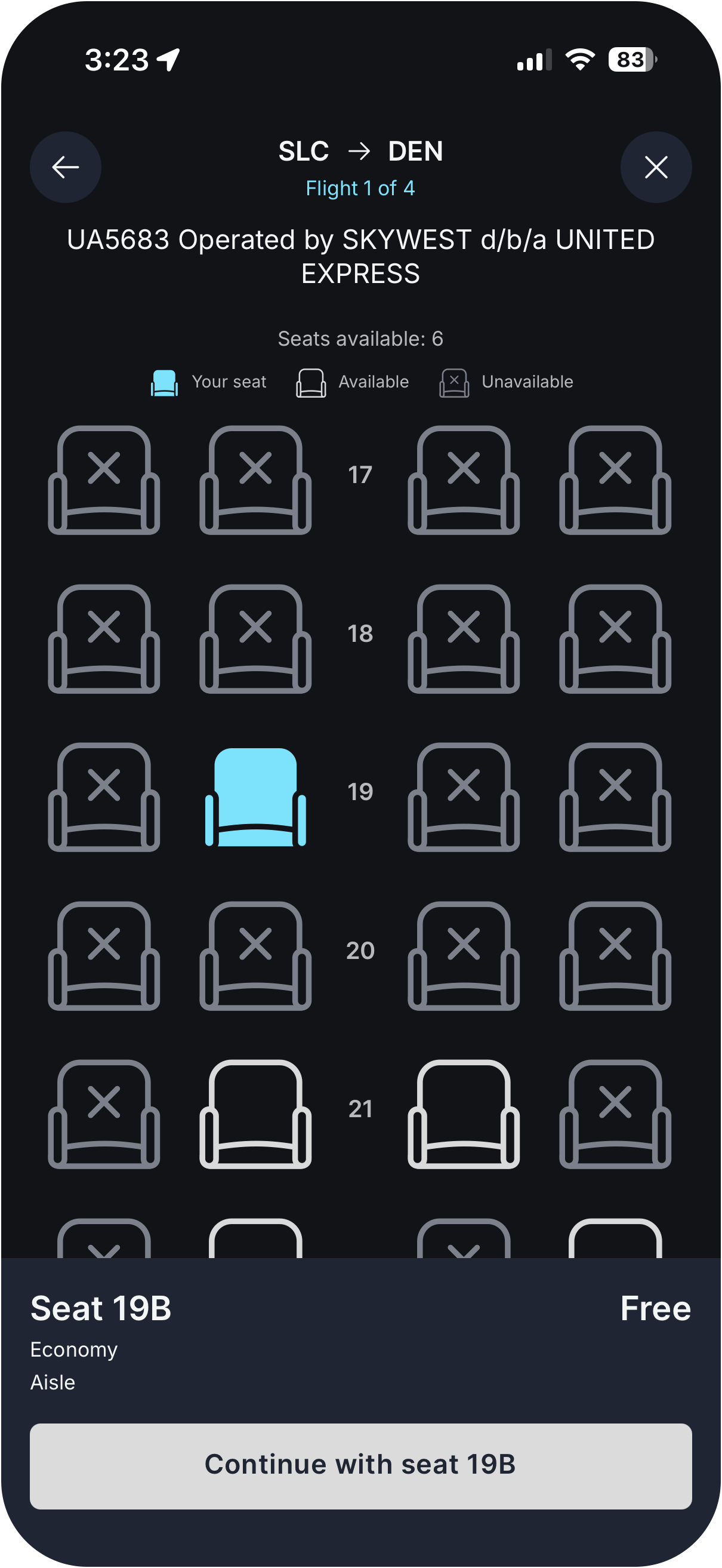
Seat selection is optional and offered for each flight segment where the airline provides a seat map.
The seat map loads for the current segment. Available seats are selectable; occupied or blocked seats are shown but can't be chosen.
Select a seat. The panel at the bottom shows the seat number, row, cabin, and any fee.
Select Continue to move to the next segment, or to review if this was the last one.
Segments without a seat map are skipped for you. If none of your flights offer seat selection, you'll see a short notice and go straight to review. You can also skip seats entirely and choose them later at check-in with the airline.
Step 7: Add trip details (if your organization requires them)
If your organization tracks bookings by cost center, project code, or similar fields, you'll be asked for them here. Required fields are marked; the rest are optional. Your travel administrator sets these up.
Step 8: Review and purchase
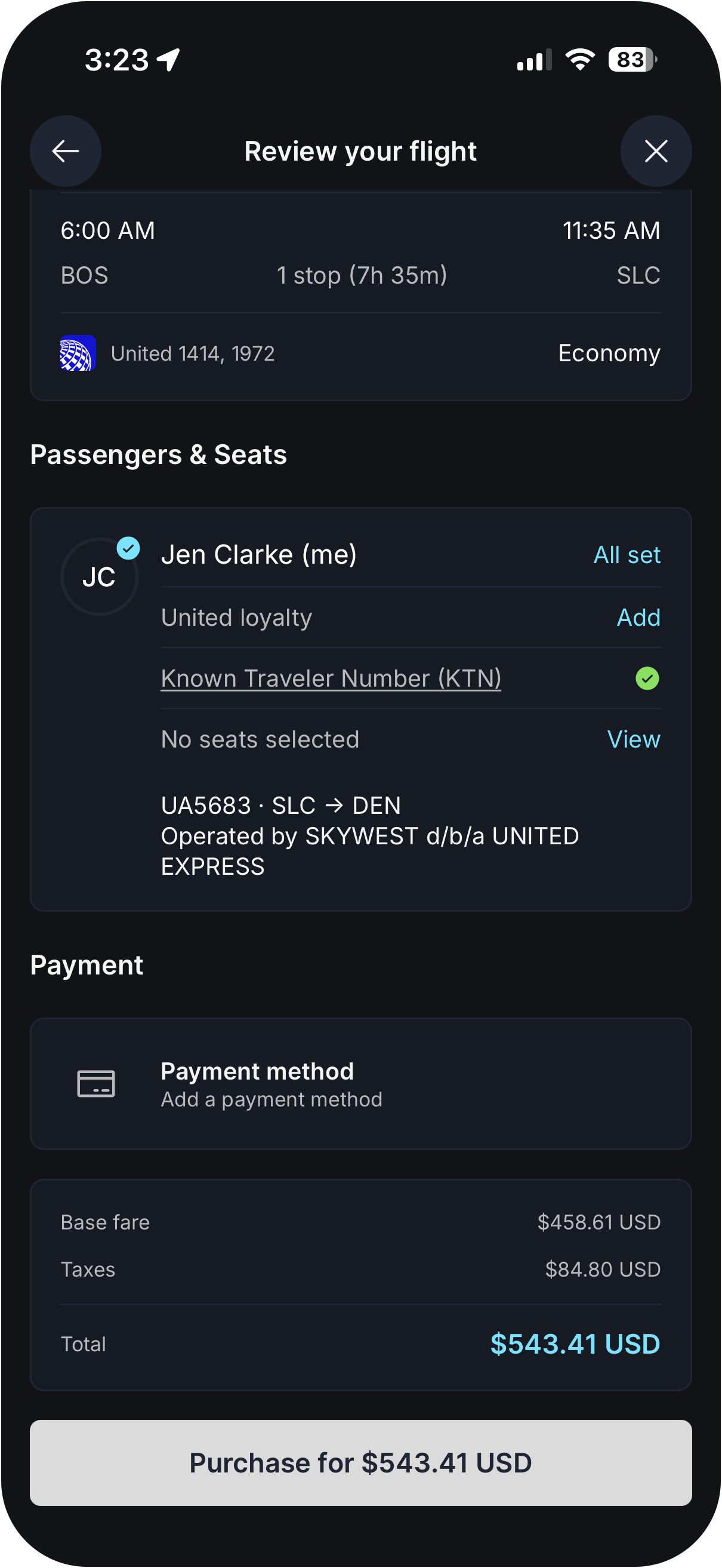
The Review page brings everything together: each flight, your passenger and seat details (with an Edit seats link if any segment offered seats), your payment method, and the fare breakdown with base fare, taxes, and total.
Check the itinerary, your name, your seats, and the payment method.
Select Purchase.
Your trip is created and Andavo opens the trip confirmation. A confirmation email follows.
If something goes wrong, you'll see a message on the Review page and nothing is charged. Try again, or contact your Christopherson advisor.

Book a hotel
Christopherson's negotiated and consortium rates are included in every hotel search. You don't enter a code or pick a program; if a property has a better rate on file for Christopherson clients, it shows up next to the public rate.
From the home screen, select the Hotel tab.
Enter a destination: a city, address, landmark, or airport.
Pick your check-in and check-out dates, then the number of rooms and guests.
Select Search.
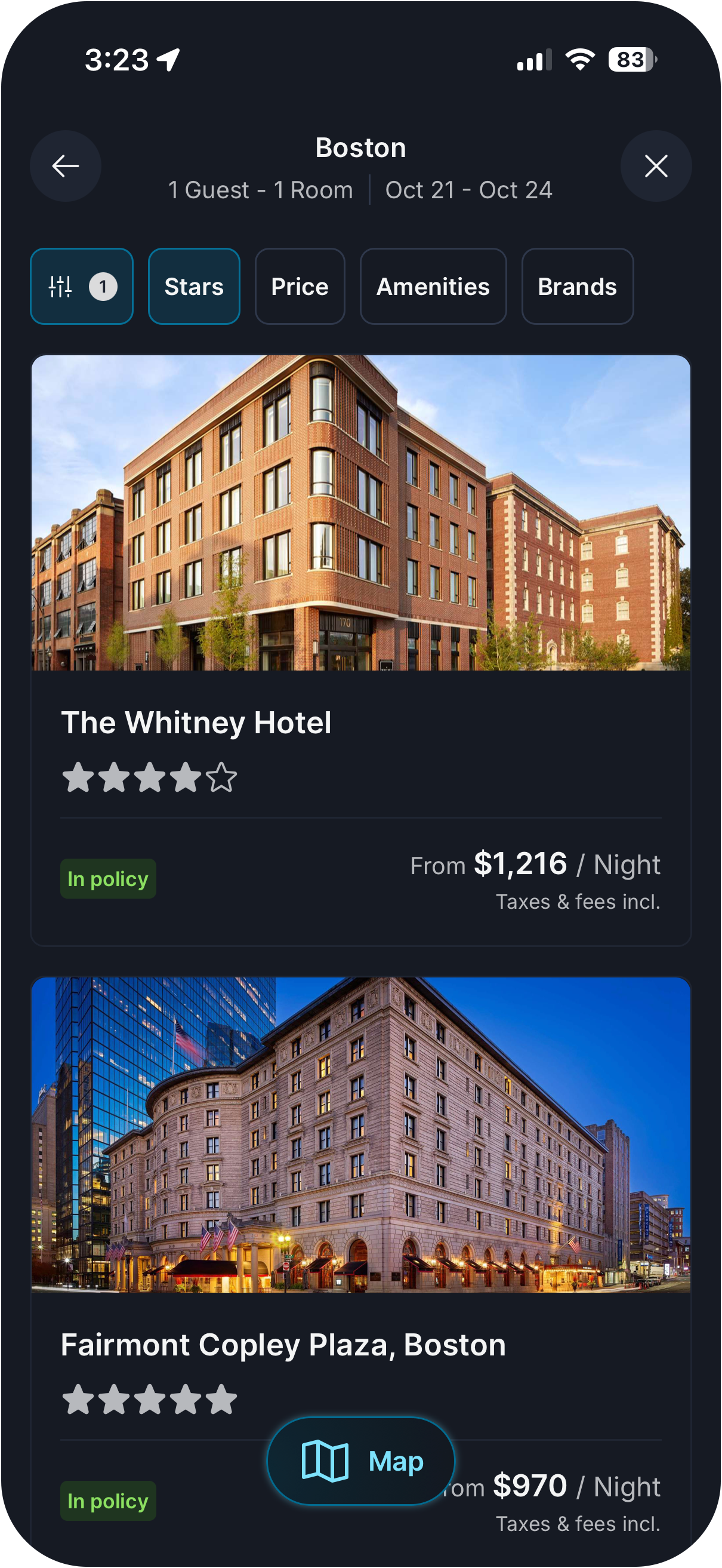
Browse results. Each card shows the property name, star rating, address, distance from your destination, nightly rate, and total. Filter by Brand, Price, Star rating, Amenities (breakfast, Wi-Fi, parking, pool, and more), or Distance.
Select a property to see its description, photos, amenities, and available rooms.
Choose a room. Each room card shows the rate, bed configuration, cancellation policy, and what's included. Read the cancellation policy before you continue; it varies by rate and property.
Review the summary: property, room, dates, nightly rate, taxes, and total. Add trip details if your organization requires them, confirm your payment method, and select Reserve.
You'll receive a confirmation number, and the hotel will be added automatically to your trip.
Why some rates look different: rates negotiated specifically for your organization depend on how your program is set up. If you expected to see one and don't, ask your travel administrator. See also How Andavo Surfaces Better Hotel Rates.
Book a rental car
From the home screen, select the Car tab.
Enter the pickup location: an airport code, city, or address. Enter a drop-off location if it's different.
Set pickup and drop-off dates and times.
Select Search.
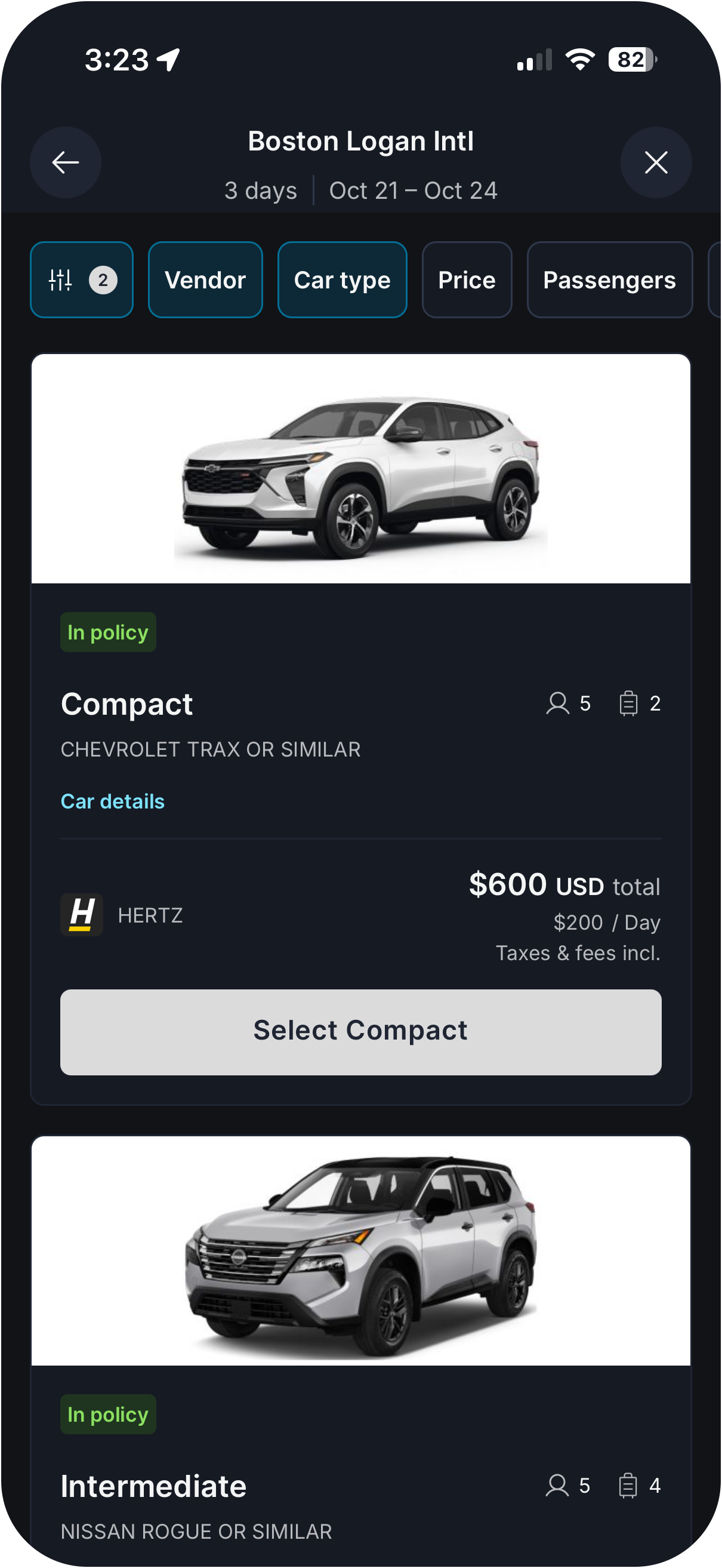
Browse results. Each card shows the rental company, vehicle class (economy, compact, midsize, SUV, and so on), an example model, daily rate, estimated total, and included features such as unlimited mileage or transmission type. Filter by Vehicle class, Rental company, Price, or Transmission.
Select a vehicle to see the rental terms, cancellation policy, included extras, and rate breakdown.
Review the summary, add trip details if required, confirm your payment method, and select Reserve.
You'll receive a confirmation number, and the car will be added to your trip. Your rental loyalty number is applied automatically where the company supports it.
Car rates are estimates. The final charge depends on the actual rental length, anything added at the counter, and the company's billing. Cancellation and no-show policies vary by company and rate.

Add a flight, hotel, or car to a trip you already have
Most trips aren't booked all at once. Your advisor booked the flight and you need a hotel; you booked the hotel last week and now need a car. You can add the missing piece from inside the trip, and it lands in the same itinerary.
Open Trips and select the trip.
Select Add to trip, then choose Flight, Hotel, or Car.
The search opens with the trip's destination and dates filled in. Adjust anything that differs, then select Search.
Book as you normally would. The new segment is added to the trip, so your itinerary, notifications, and receipts stay in one place.
[Screenshot: trip detail with Add to trip menu open]
This works for trips from any source: booked in Andavo, booked by your Christopherson advisor, or added by forwarding a confirmation to plans@andavo.com.

After you book
Find the trip under Trips, on web or mobile, with the full itinerary and confirmation numbers.
Stay updated. Flight status notifications and Follow a Flight in the mobile app track gate changes and delays for you.
Get receipts. Invoice and receipt PDFs are available from the trip once charges post.
Change or cancel. Contact your Christopherson advisor through Andavo; changes to a booked trip are handled for you.

Good to know
Andavo Booking currently books one traveler per booking.
Seat assignments are requests to the airline and can change at check-in. Basic Economy and some restricted fares don't allow advance seat selection even when a seat map appears.
Web and mobile booking are turned on separately, so you may have one before the other.

Need help?
Your Christopherson advisor is a message away in Andavo.
Advisors are available 24 hours a day, 7 days a week, 365 days a year, by phone, in-app chat in the Andavo app, text message, or email. If you need help urgently outside business hours, such as a same-day flight change, calling is the fastest way to reach an advisor.
Related articles: Managing your travel profile· How to add external booking to Andavo · Finding and understanding your trip receipts · How to get help