
Finding and understanding your trip receipts
Every trip in Andavo has an invoice that gives you a full breakdown of charges, organized by vendor. This invoice helps you see what’s been booked, what’s been charged (when applicable), and how everything fits together. It's perfect for expense reporting, reconciling charges, or just double-checking your trip costs.
Use it for expense reports, to reconcile charges against your card statement, or to check what a trip actually cost. No hunting through email, and no need to ask your travel administrator.
What is included on Invoices & Receipts?
Invoices and receipts give you a clear and organized view of all charges for that trip, including:
Vendor
Ticket or confirmation number
Base fare and taxes
Payment method (last 4 digits of card)
Timestamp
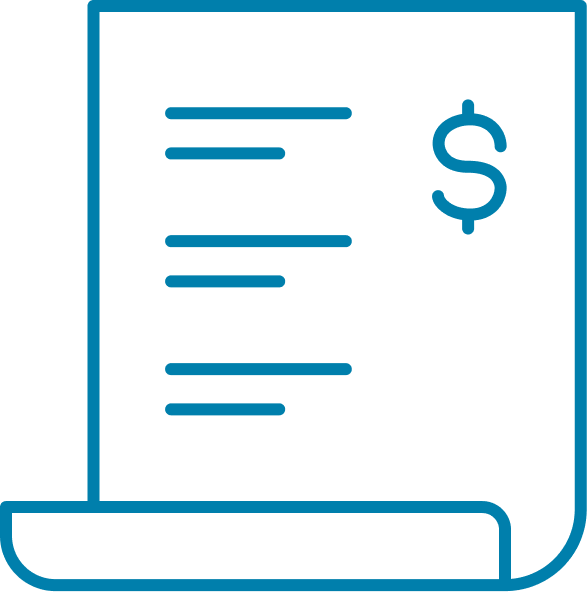
The Invoices tab lives inside every trip in the Andavo traveler app. No more hunting through emails or calling your travel manager. Everything is in one place.

Hotel and car charges are estimates
Hotel and rental car amounts come from the booking system rather than from the vendor, so your final charge may differ slightly — a resort fee, a fuel charge, an extra night. You'll see a disclaimer on those line items.
Flights are different: those amounts are the actual ticketed fare.

Finding your receipt
You can view your trip receipt by:
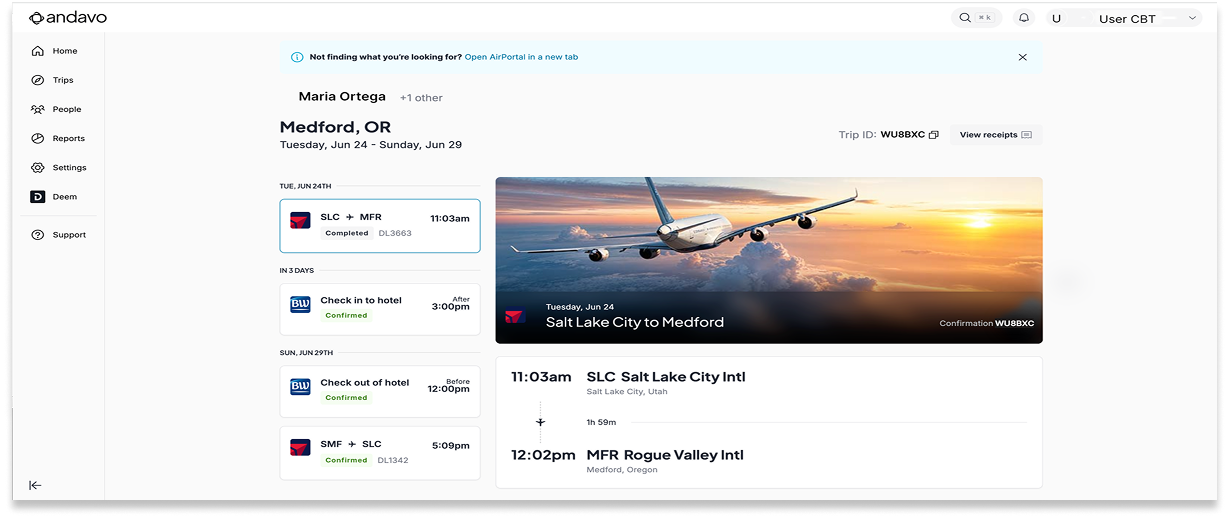
Open a trip and select the Invoices tab. You'll see every charge for that trip, organized by invoice date.
This works the same way in the Andavo mobile app and in your browser — you can pull a receipt at the gate as easily as at your desk.

How to Access and Download a Receipt
Open the Andavo traveler app and navigate to your trip
Scroll to the bottom of your trip.
Click the View receipt button.
Review your charges, organized by invoice date
Download what you need:
Individual invoice PDF - for a single booking
Combined receipt PDF - all invoices for the trip in one file
Upload the PDF to your expense tool (Concur, PayHawk, MobileXpense, etc.)
What's on a Receipt?
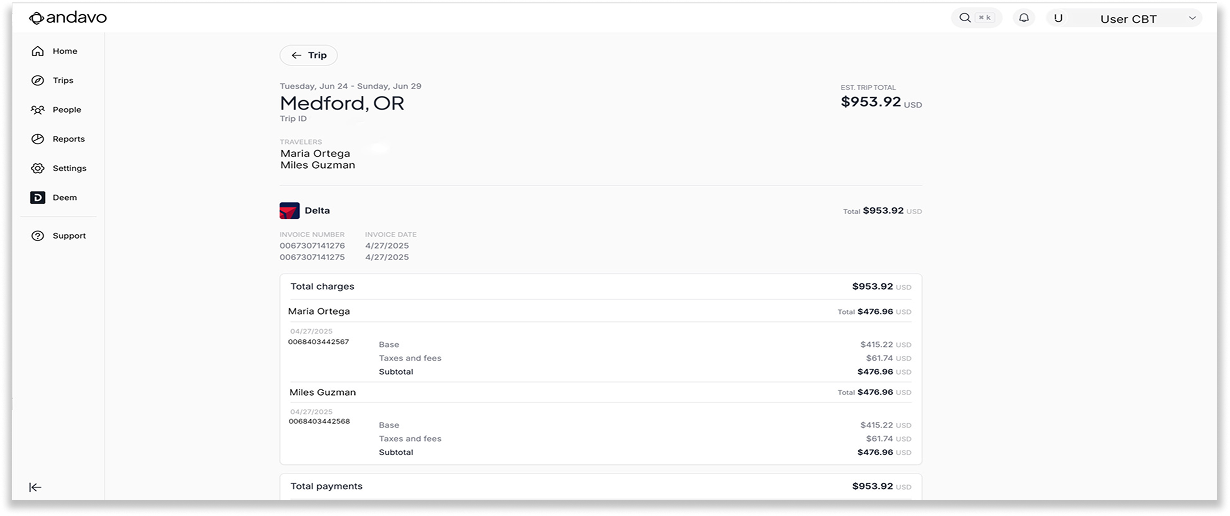
Receipts are grouped by vendor, not by booking type. Book flights with Delta and American on the same trip and each gets its own section.
Each vendor section shows:
The vendor name
Charges — subtotals, taxes, nightly rates, or fare breakdowns
Invoice numbers and dates
Traveler details
Depending on what was booked, you may also see:
Ticket numbers, for flights and service fees
The date each charge was processed
Payment details — the amount paid and the last four digits of the card
Those last four digits are there on purpose: they're what lets you match a line on your receipt to a line on your card statement.
If your travel program has set them up, you may also see Department and Trip Purpose on your invoices. Those come from your organization's settings and carry through to the PDF.

How flights appear on receipts
Airfare sections give a complete picture of each traveler’s flights, including:
Flight routes and dates.
Ticket numbers.
Fare breakdowns- base fare, taxes, fees.
An invoice for each booking or change.
Payments made, including card details.

How Exchanges, Voids, and Refunds Appear
Receipts also reflect what changed after you booked:
If this happened | Here's what you'll see |
|---|---|
Exchange | The ticket credit applied, any penalty, remaining airline credit, and a link back to the original invoice |
Void | The original invoice, updated, with the payment cleared |
Refund | The original invoice showing both the charge and the refund, each with a timestamp |
Unused ticket credits show the value still available to you. Worth a look before you rebook — an advisor can apply a credit you'd forgotten about. All this info is kept in one place so you can track exactly what was paid or credited across your trip history.

What about service fees?
Service fees appear as their own line, showing:
The ticket number or booking the fee applies to.
Date and amount charged.
Payment details, if applicable.
Fees only appear if they were charged and processed through Andavo.

Frequently asked questions
Can I access my receipts from my phone?
Yes. The Invoices tab is in the Andavo mobile app, with the same view and the same downloads as the browser.
Will these work with my company's expense tool?
Yes. Andavo's receipts are built for upload into any expense system — Concur, PayHawk, MobileXpense and others. Download, then upload.
There's no invoice for an older trip. Why?
Invoice data for older trips is often incomplete — booking systems remove trip details after travel. If you need a receipt for a past trip, ask an advisor and they'll see what can be retrieved.
Can I see another traveler's receipts?
No, each traveler can only see their own invoices. If you need to access receipts for another traveler, contact your travel admin.

Still have questions?
If something looks off, or you need help interpreting a receipt:
Reach out to your travel manager or support team.
Or contact us directly through feedback@cbtravel.com.
We're here to help you make sense of it all!