
Getting started with Andavo
Get to know the Andavo traveler app
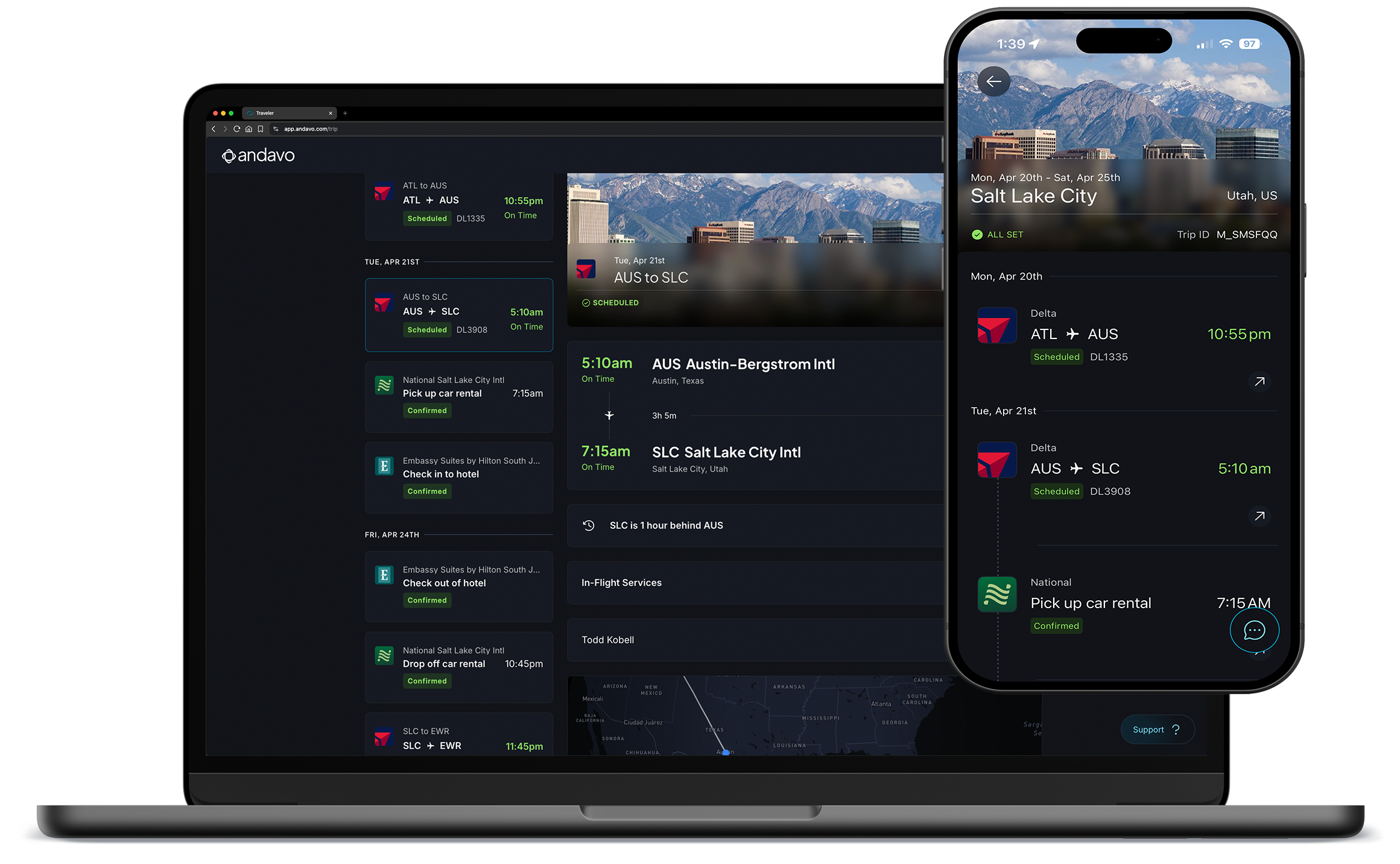
Welcome to Andavo by Christopherson. The place where your trips, your traveler profile, your payment cards, and access to a Christopherson advisor live all in one place — on your phone or in a browser.

This guide covers everything you need to know about Andavo and what you'll find once you're there.
Summary
Andavo is Christopherson's travel management platform, with products for travelers, travel managers, finance admins, and developers.
The traveler app has:
Booking built in
Dynamic itineraries for each trip
Easy profile management
Push notifications of live itinerary updates
Payment card management
Live chat with an advisor

Signing in
Your travel administrator will create your Andavo account. Once you've been added to Andavo, you can sign in with your work email.
Multi-factor authentication
The Andavo platform uses multi-factor authentication (MFA) to help keep your travel details and personal information secure. MFA adds another layer of security by requiring an additional verification method when signing in to access your account and sensitive information.
To complete MFA setup, sign in with your username and password and, when prompted, select an additional security method. Follow the on-screen steps to complete the verification and secure your account. Security settings may be accessed from your “Profile” then “Settings” section of your account. If you have trouble signing in or replace your device please contact your Christopherson travel account team for help.
Signing in on your phone
Download the mobile app from the App Store:
Open the app and select sign in.
Enter your credentials to log in.
Signing in through a browser
Navigate to https://app.andavo.com/
Click sign in and enter your credentials.
Can't get signed in?
Most sign-in problems come down to a password you've never set or can't remember. You can fix that yourself in a couple of minutes by following the directions below:
New or forgotten password
Open the Andavo mobile app, or go to https://app.andavo.com/, and select Sign in.
Select Can't log in to your account.
Enter the email address your organization has assigned to you, which is usually your work email.
Open the email we send you and follow the link to set a password.
Sign in with your work email and your new password.
The password you set here is your Andavo password. If you have an older Christopherson travel login, this doesn't change it.
The email doesn't arrive
Make sure you entered the email address your organization has on file for you, and check your junk or spam folder. If it still hasn't arrived, contact your travel administrator.
You still can't get in?
Contact your travel administrator. They set up your Andavo account and can check that it's linked to the right email address.
You need help with a trip right now
You don't need to be signed in to reach an advisor. Call 800.600.3737, 24 hours a day, 365 days a year.
Features
Navigating the Home Page
Your home page shows your upcoming trips and any notifications about them. From here you can open a trip, look back at past ones, update your profile, manage your payment cards, and reach an advisor.
My trips
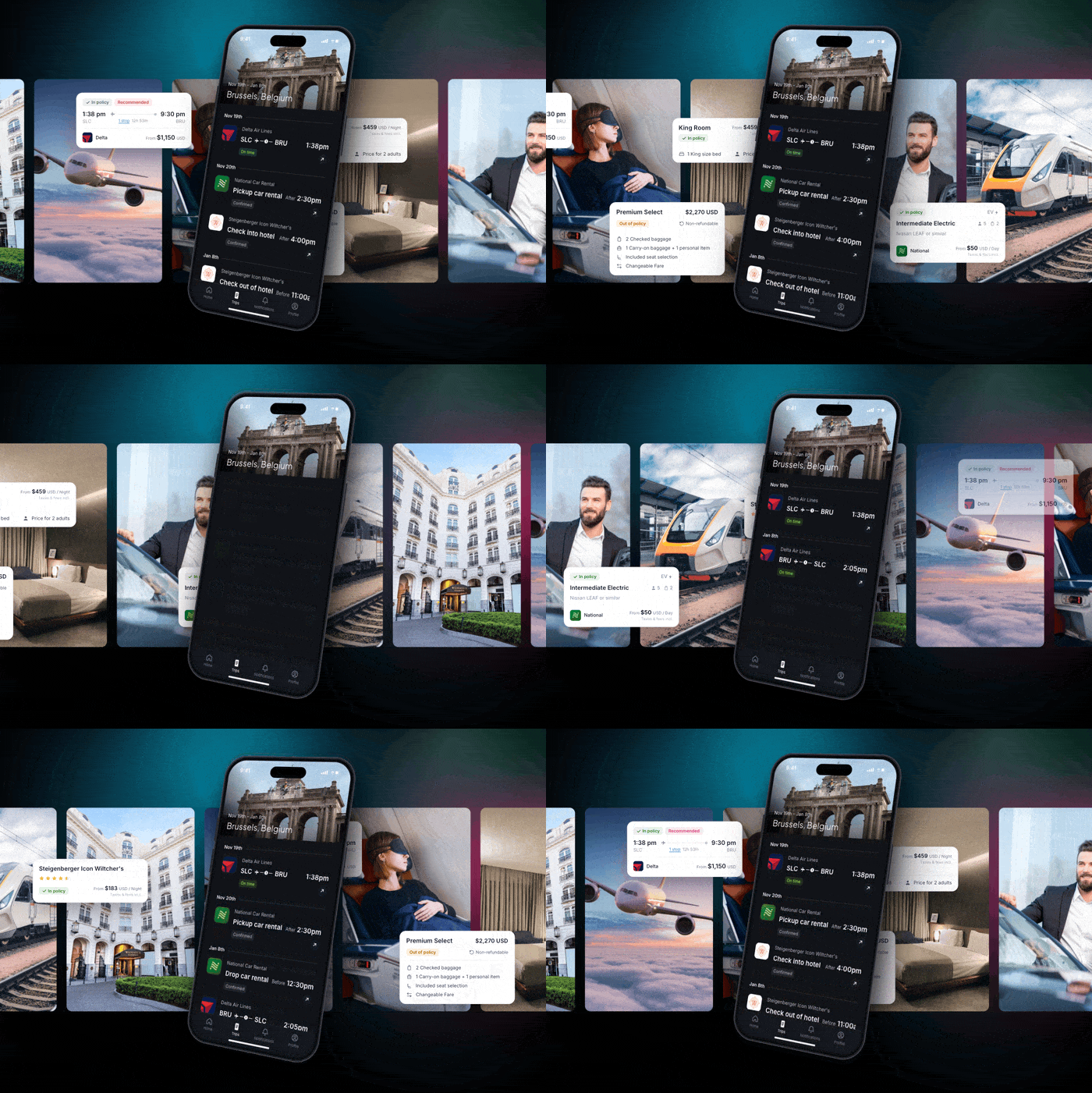
With Andavo, every flight, car rental, and hotel booking appears in a chronological itinerary — whether an advisor booked it, you booked it through your company's booking tool, or you imported the booking into Andavo.
Get live updates on gate changes, check-in times, pickup locations, and more, so you’re always a step ahead.
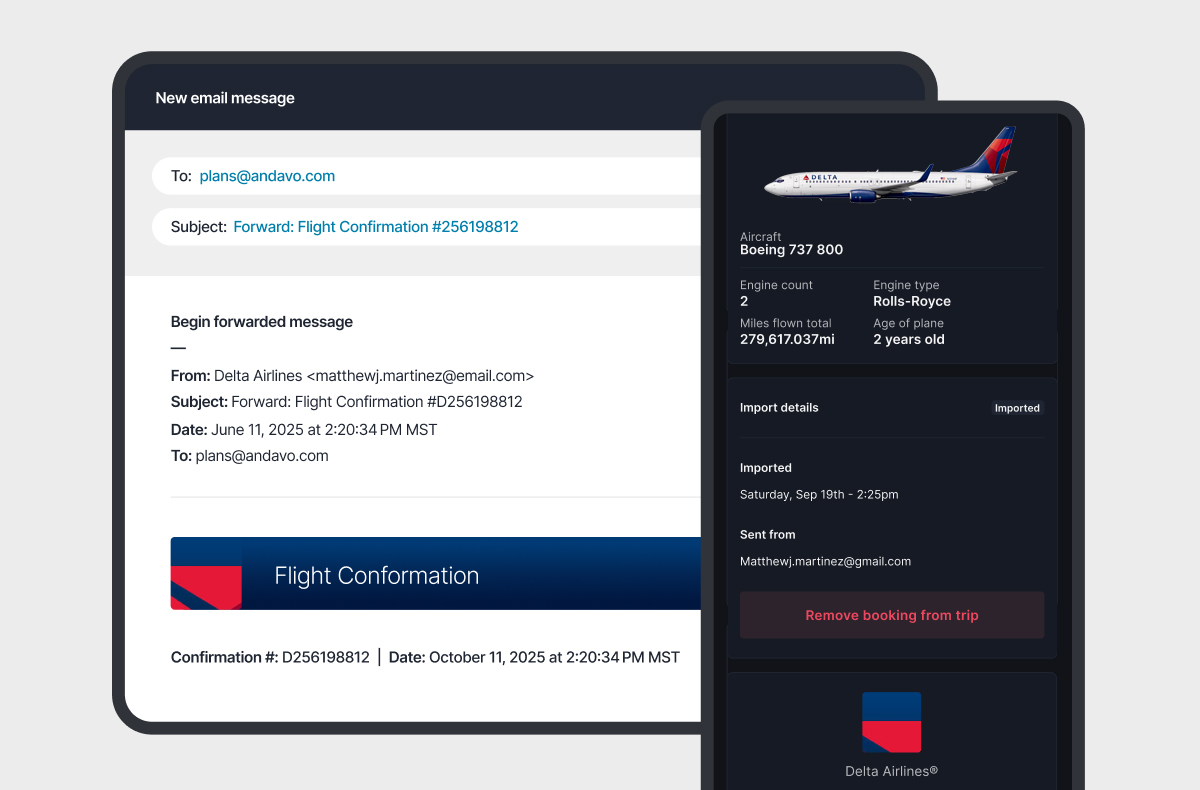
Import a booking
Booked a flight, hotel, or rental car outside Andavo? Add any outside bookings to your trip without any hiccups. Just forward your reservation to plans@andavo.com, and your booking will be automatically added to your trip.
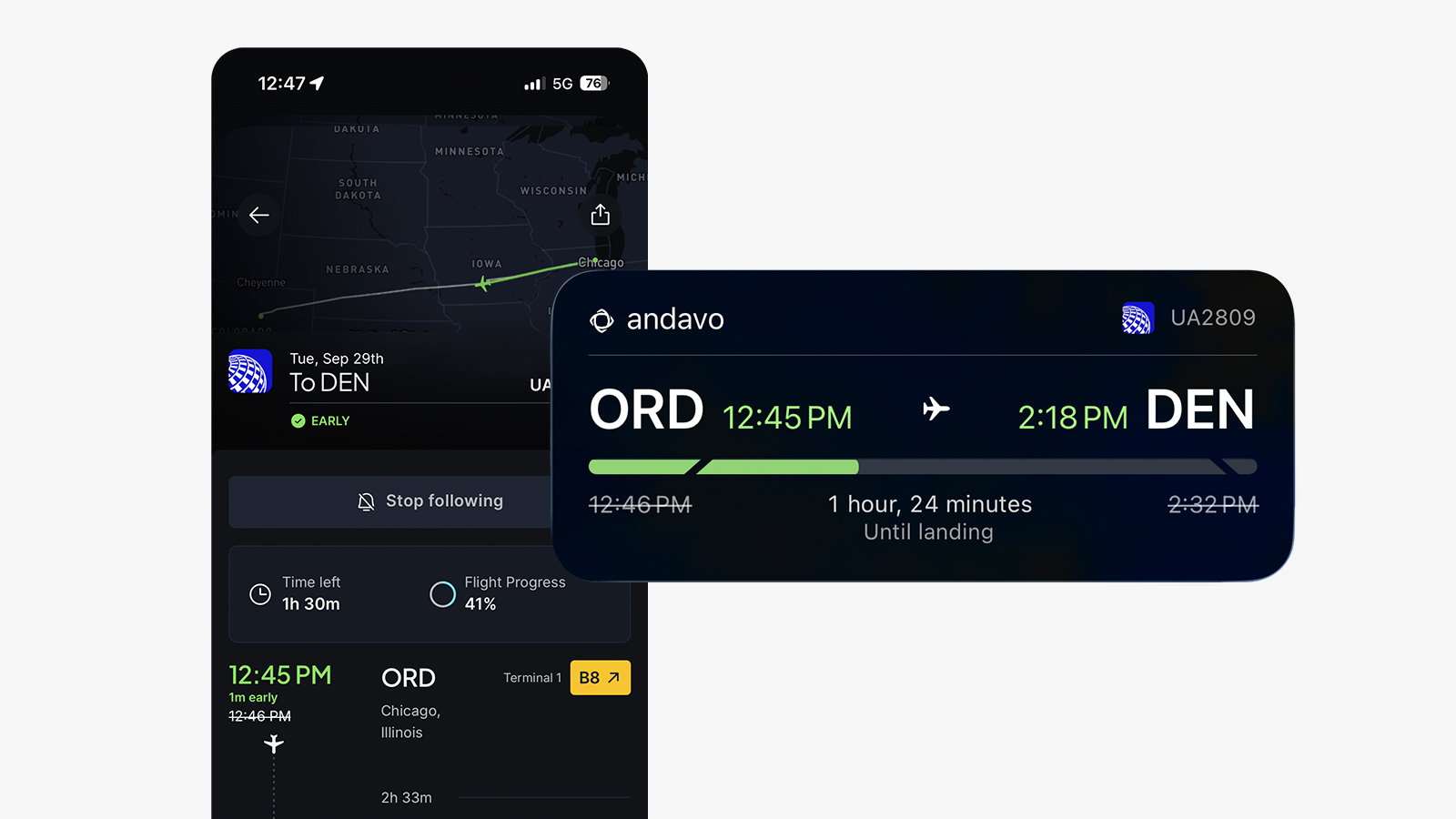
Follow a flight (mobile app)
Track any flight so pickups, meetings, and connections are easy. Turn on push notifications and live activities so you are always in the know on arrival times or delays.
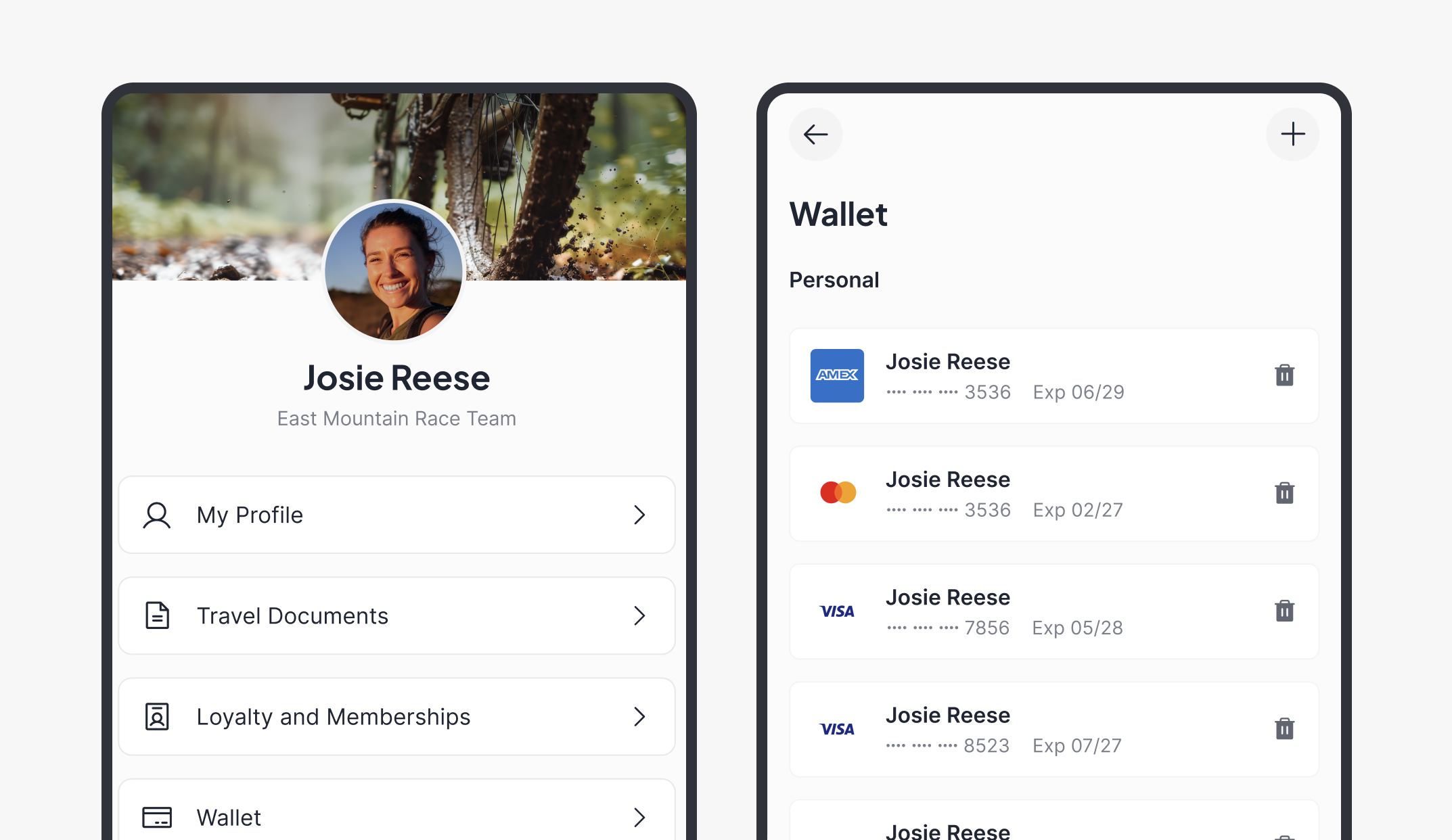
My profile
Keep all your details organized and up to date. Set your travel preferences, manage personal information, and store payment methods — all in your traveler profile.
Travel documents: your government-issued ID and passport details
Known Traveler Number and TSA Redress number: stored in your profile and applied to your bookings automatically
Loyalty programs: your frequent flyer, hotel, and car rental membership numbers, applied whenever a trip is booked
Preferences: your preferred seat type, meal, departure airport, and preferred airlines
Andavo wallet: your preferred payment methods, selectable in the booking flow
Fields set by your travel administrator: Your name, work email, and your company's internal identifiers are locked. They establish who you are in the booking systems. If one needs to change, for example because your legal name no longer matches your ID, ask your travel administrator.
Concur profile sync: If your travel program uses Concur, your profile stays in sync, whether you update it in Concur or Andavo.
For a field-by-field guide, see Managing your travel profile.
Notifications
The Andavo mobile app sends you push notifications when something affects a flight you're on: a gate change, a delay, a cancellation, an arrival update, or a weather or security event that intersects your itinerary.
Advisor support
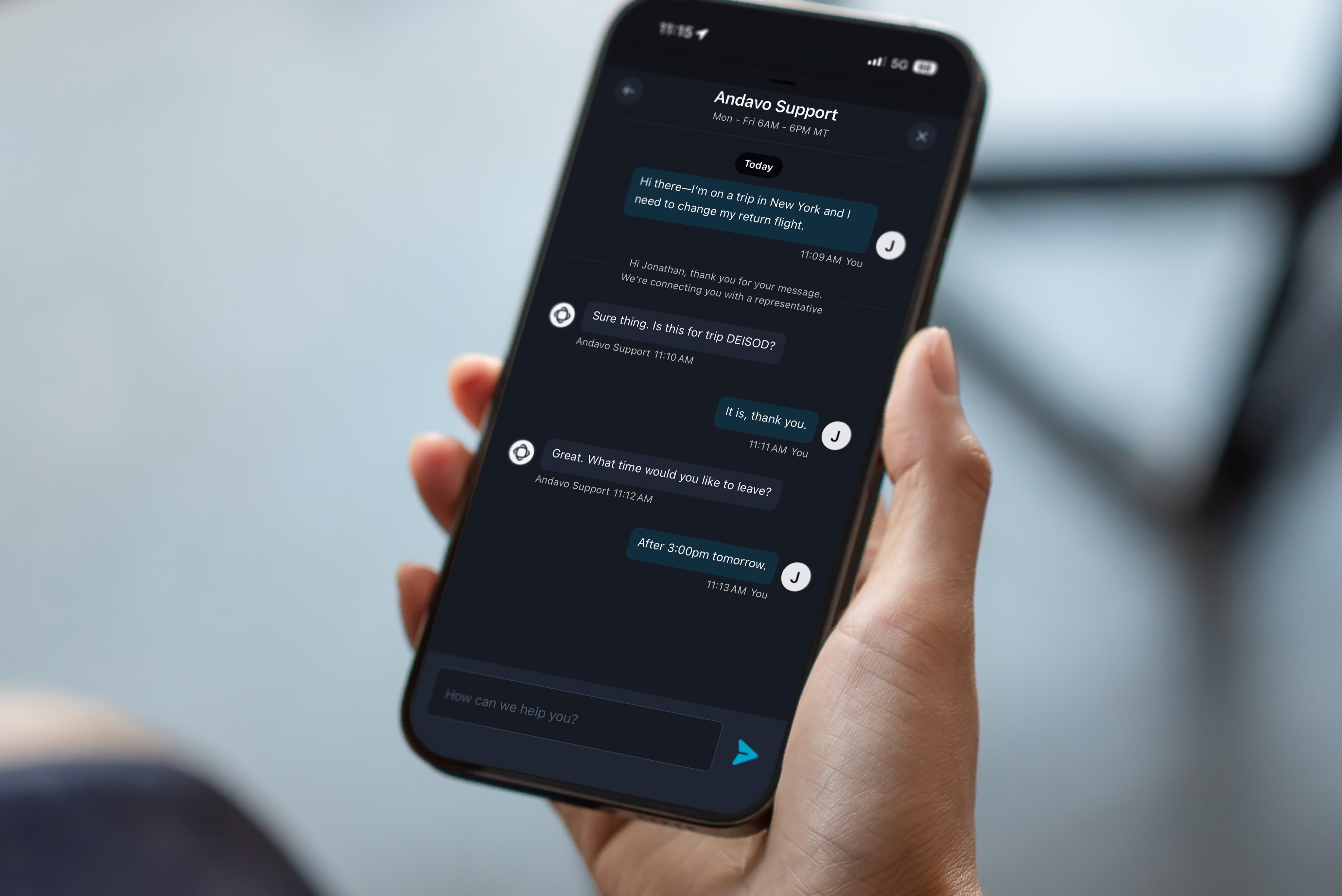
Christopherson advisors are available 24 hours a day, 365 days a year — every channel, not just phone, and not only in an emergency.
Live chat from the Andavo mobile app, tap the chat bubble. You're messaging a real advisor, not a bot, and your conversation history stays with you. An advisor can change an existing booking or arrange a new one right there in the chat.
Call, text, or email an advisor if you prefer. The chat bubble in the app can route you to your preferred support channel.
Call or text: 800.600.3737
Email: support@cbtravel.com

Frequently asked questions
What if I've never had a password or don't remember my Andavo credentials?
For both mobile and desktop:
When you open the app or visit the Andavo website, select sign in, which will take you to the login page.
Click on can't login to your account.
Enter the email associated with your organization.
You will receive an email with a link to set your password.
Follow the link, set your password, and log in successfully.
What if I do not receive the email to set my password?
Make sure you are using the correct email associated with your organization.
If you still do not receive the email, contact your travel administrator within your organization for assistance.
What if I forgot my password?
If you forgot your Andavo password, you can reset your password in the mobile or web app. This will create a new password specifically for your Andavo account. Note: It will not change your Andavo password.
What if I just can't login?
If you can't login, you can reach out to our team at support@cbtravel.com to get support with troubleshooting any issues.
How does Andavo work with Concur or Deem?
Andavo works with products from our trusted partners, Concur or Deem. With the Andavo traveler app, team members can view bookings made in Concur, Deem, or through an advisor in one place. We also have single sign-on so you can directly login to book your travel yourself.
For any other questions, feel free to reach out to your organization's travel support team.