
Signing in to Andavo: verification codes and passkeys
Andavo protects your account with a second step when you sign in. After your password, you confirm it's you with a code from an authenticator app, or with a security key. You set this up one time, and it works on the website and in the mobile app.
What is an authenticator app?
An authenticator app is an app on your phone or computer that shows a 6-digit code for each account you add to it. The code changes every 30 seconds, and only your app can make it. A person who has your password still cannot sign in without the code. Common authenticator apps are Google Authenticator and Microsoft Authenticator. A password manager such as 1Password can also do this.
Set up an authenticator app
Sign in with your email and password.
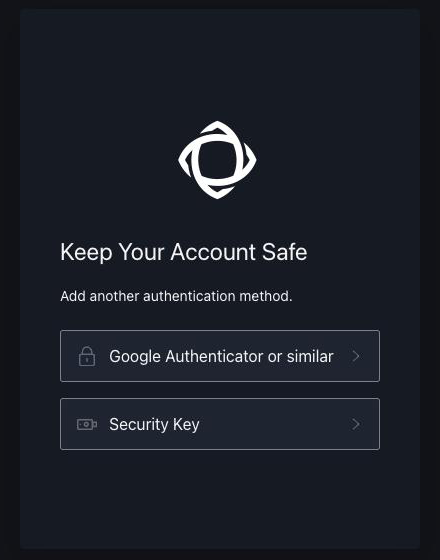
On Keep Your Account Safe, select Google Authenticator or similar. Any authenticator app works, for example 1Password, Google Authenticator or Microsoft Authenticator.
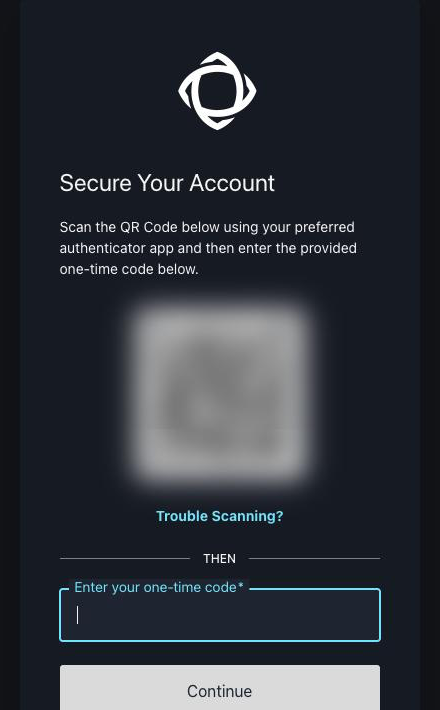
On a computer: scan the QR code on the screen with your authenticator app.
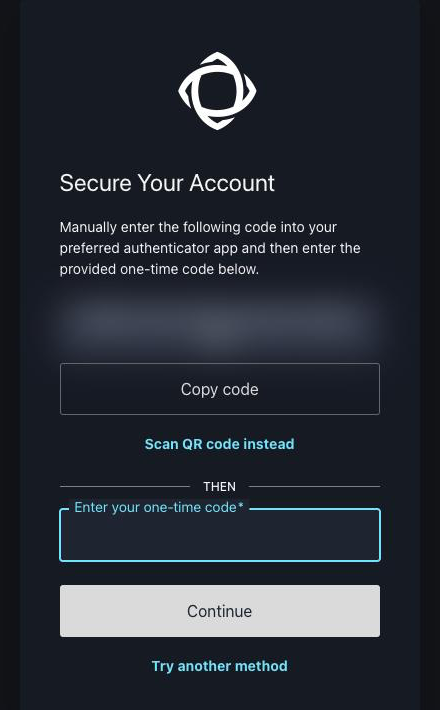
On your phone: select Copy code and paste the code into your authenticator app. If you see a QR code that you cannot scan, select Trouble Scanning? to show the code.
Your app now shows a 6-digit code. Type it into Enter your one-time code and select Continue.
The Keep Your Account Safe screen:
The QR code screen on a computer:
The setup code screen, with Copy code:
Use a security key instead
On Keep Your Account Safe, select Security Key and follow the steps on the screen.
Sign in after setup
Enter your password, then the current 6-digit code from your authenticator app. The code changes every 30 seconds.
Passkeys
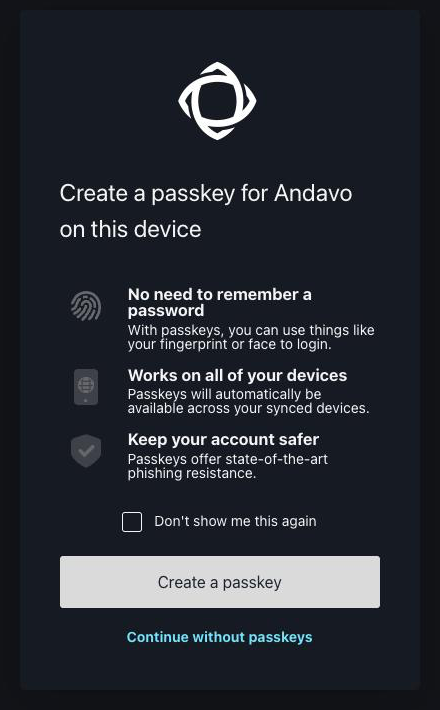
A passkey is a sign-in key that is saved on your device or in your password manager. It replaces your password. It lets you sign in with your fingerprint, face or device PIN. You do not enter a password or a code. After you sign in with a password, Andavo offers to create a passkey on your device. Select Create a passkey to save one, or Continue without passkeys to skip. The next time you sign in, select Continue with a passkey.
Why use a passkey:
No password to remember. You sign in with your fingerprint or face.
One step instead of two. Andavo does not ask for a 6-digit code when you sign in with a passkey.
It works across your devices. A passkey is available on your synced devices.
It is safer. There is no password or code that someone can trick you into giving away.
The passkey offer:
Keep your setup code private
The QR code and the setup code are for you only. Do not send them, or a screenshot of them, to anyone. Andavo support does not ask for them.
If you get stuck
Wrong account: select Switch accounts at the bottom of the page.
Code not accepted: make sure the date and time on your phone are set automatically, and that you are reading the code for Andavo.
New or lost phone: see How to get help.